Troubleshooting Sherpa workstation connection issues
If you are having difficulties connecting to your workstation with the Teradici PCoIP client, please look at the list of common issues below.
- Troubleshooting Sherpa workstation connection issues
- Insecure connection
- Unable to connect. Please verify the address or registration code and try again.
- The network connection has been lost
- This desktop has no sources available or it has timed out
- You are not entitled to any resource on this domain
- Authentication failed - unknown username or password
- Failed to establish a remote session due to invalid username, password, and/or domain
- You have not been invited to any workstations
- The workstation was stopped but has now been started
- The workstation is in a non-startable state
- Error 6609 and Error 6405
- Multiple invites but I automatically get connected to the same workstation
- No available licenses
- Command failed due to a PCoIP Security Gateway failure
Insecure connection
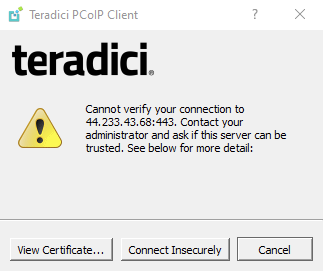
The above is slightly misleading. Because we are using an IP address to connect to the Display Gateway we cannot use a trusted certificate authority to generate the SSL certificate that is used to encrypt the PCoIP traffic. We are using our own self-signed certificate. This is considered to be “insecure” as the issuer of the certificate, us, has not been verified by a third party. Rest assured, your PCoIP session is encrypted and secure.
You can stop the message from popping up by setting security_mode = 0 in the PCoIP software client as described in the (Windows/Mac/Linux) documentation below.
- Windows: https://www.teradici.com/web-help/pcoip_client/windows/21.06/security/pcoip_software_client_security_modes/
- Mac: https://www.teradici.com/web-help/pcoip_client/mac/21.06/security/software_client_security_modes/
- Linux: https://www.teradici.com/web-help/pcoip_client/linux/21.06/security/software_client_security_modes/
Unable to connect. Please verify the address or registration code and try again.
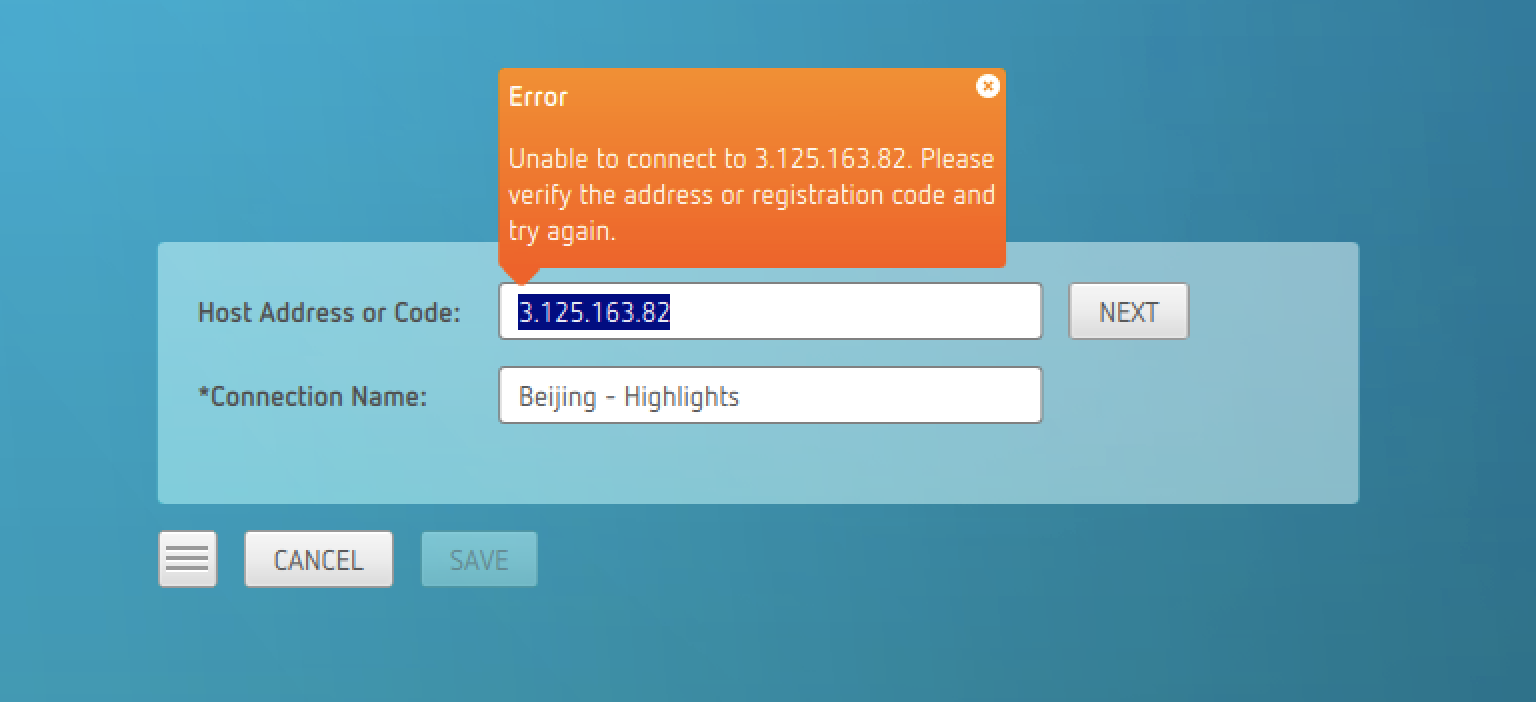
The above issue may be caused by a few possible scenarios.
Display Gateway is off
Each Sherpa project has a Display Gateway. You connect to your workstation through the Display Gateway. If the Display Gateway is off you will see the above message. If this problem is being experienced by everyone in your Sherpa project, please ask your Sherpa admin to check the state of the Display Gateway.
Your IP address is not on the Sherpa project allow list
Your IP address as returned by something like https://www.whatsmyip.org/ needs to be added to the allow list for the Sherpa project. Please check with your Sherpa admin to make sure your current IP address is in the Sherpa project allow list.
Corporate firewall is blocking the required ports
Certain ports are required to be open to allow a successful PCoIP connection. Some corporate networks can be quite strict. Minimally they need to allow outbound (and inbound) TCP:433, TCP:4172 and UDP:4172. It is possible that in the above case port TCP:443 (https) is being blocked.
The network connection has been lost
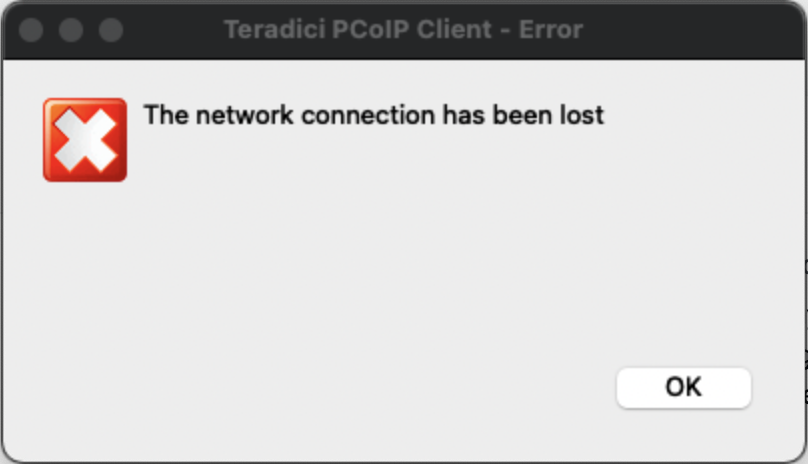
Port 4172:TCP is being blocked. You should seek advice from the administrator of your local network.
This desktop has no sources available or it has timed out
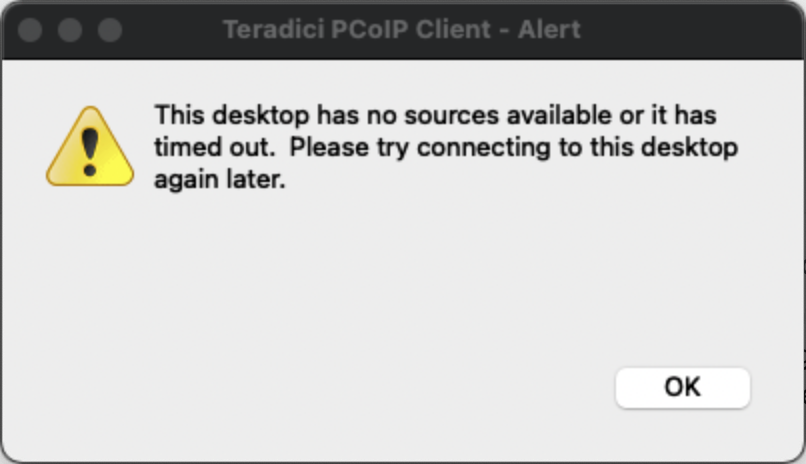
Port UDP:4172 is being blocked. You should seek advice from the administrator of your local network.
You are not entitled to any resource on this domain
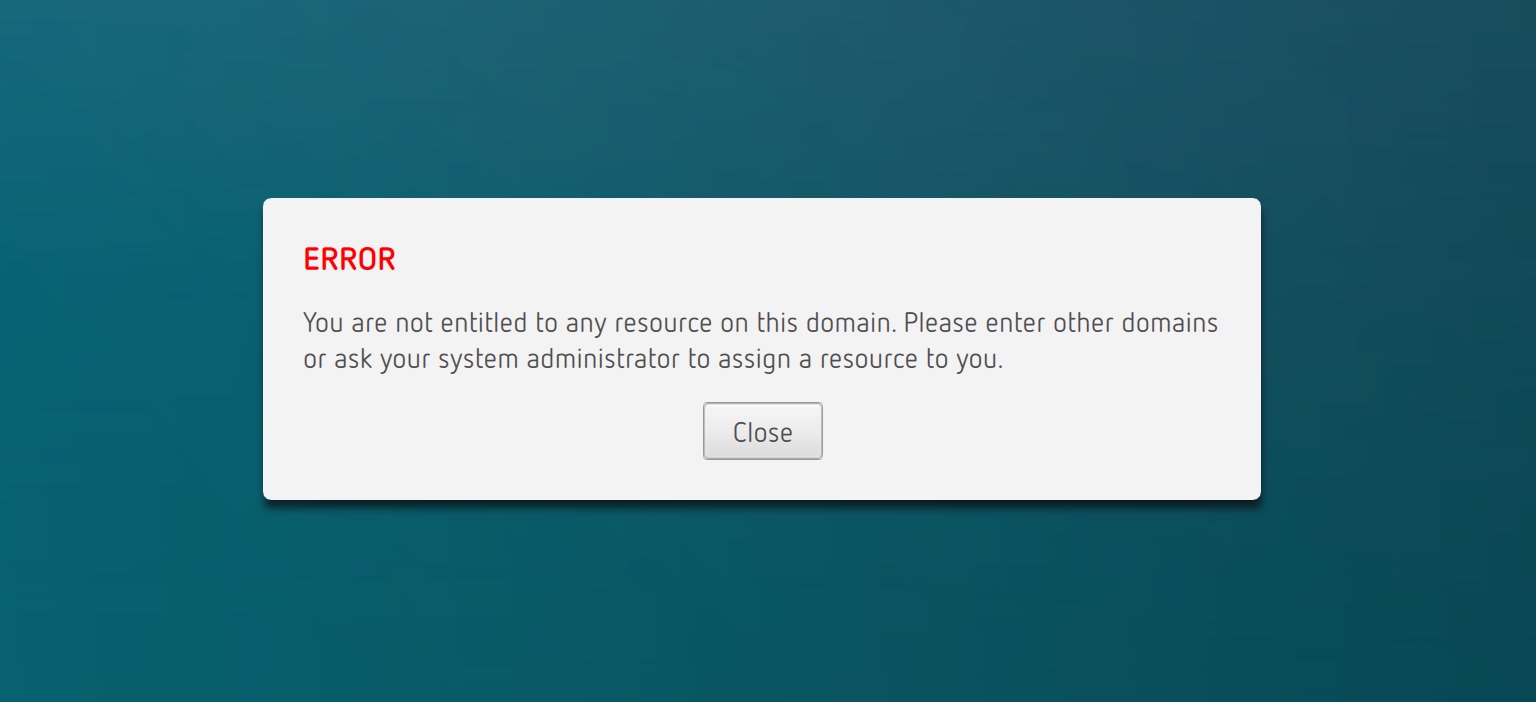
This rather complicated sounding error message probably means that somebody else is logged into the workstation you are trying to access.
Authentication failed - unknown username or password
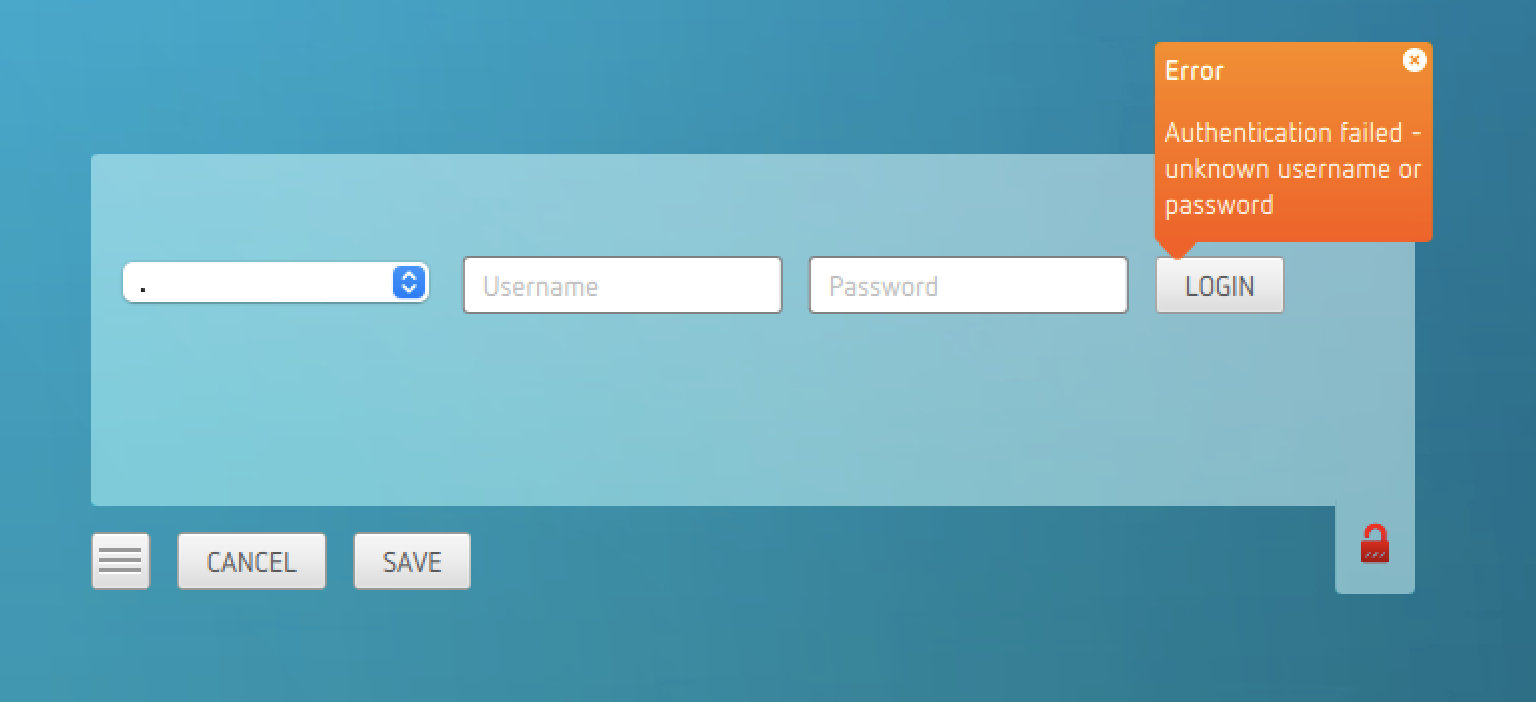
Have you signed up to Sherpa?
You need to sign up to Sherpa before you can access a Sherpa project/workstation. You can sign up here https://sherpa.app.escape-technology.com/signup.
Are you using your Sherpa username and password?
You use the same username and password for the PCoIP client as you would for logging into Sherpa https://sherpa.app.escape-technology.com/. If you can log into Sherpa you should be able to log into the PCoIP client.
Failed to establish a remote session due to invalid username, password, and/or domain
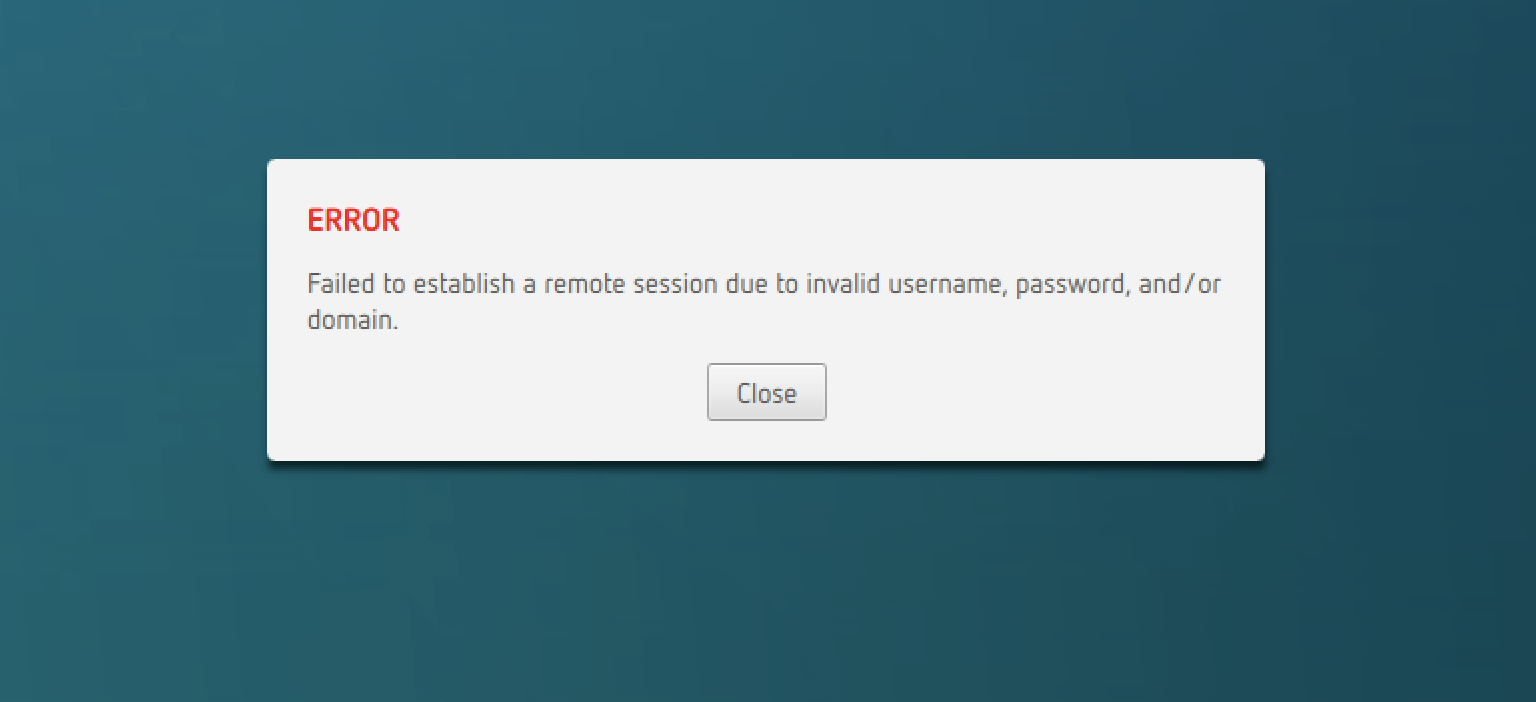
You have successfully logged into the Display Gateway but your user does not exist on the workstation. This can sometimes happen if you try to connect to a workstation quickly after having accepted the invite. Please wait 5 minutes and try again. If that fails, turn off the workstation, wait 5 minutes, turn it back on again, wait 5 minutes and then try connecting again.
You have not been invited to any workstations
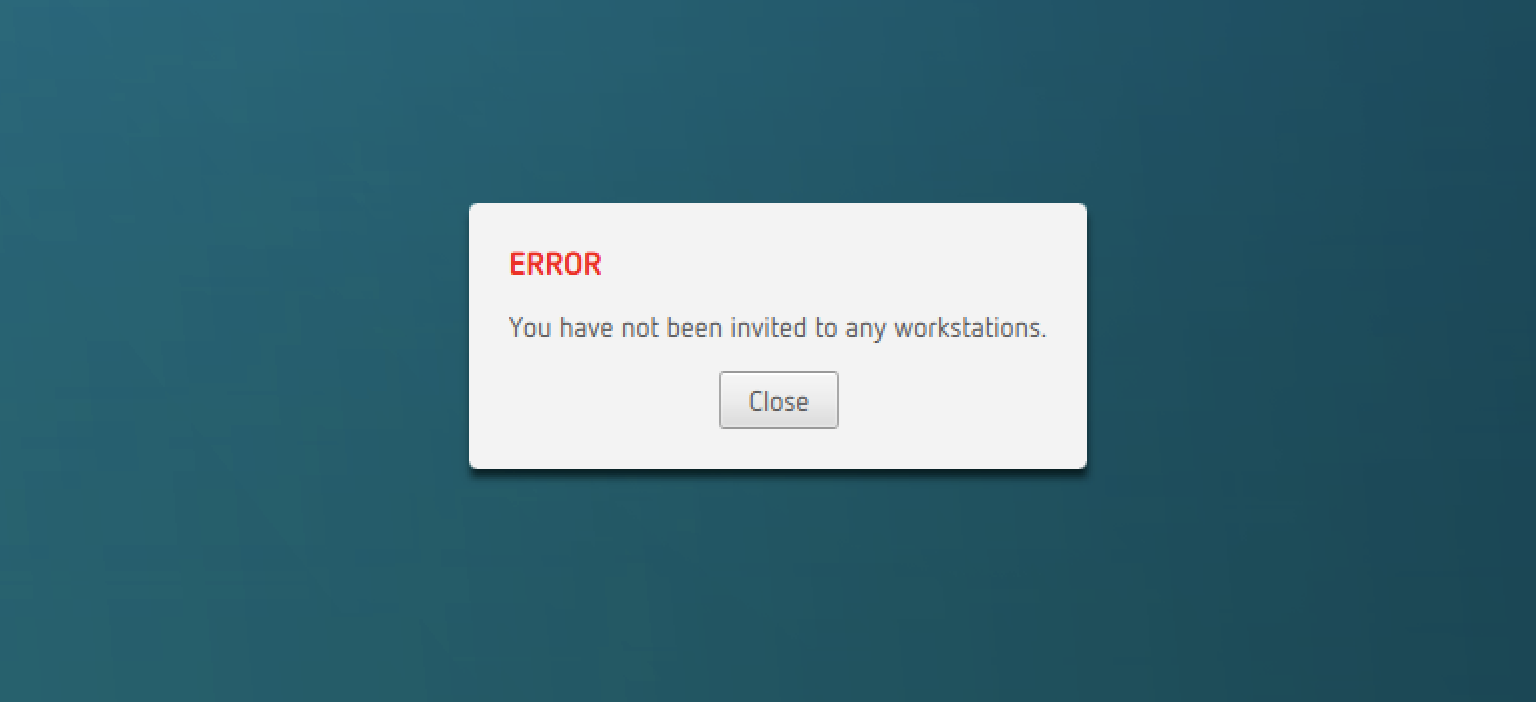
You need to be invited to a workstation before you can access a workstation in a Sherpa project. Please contact your Sherpa admin and get yourself invited.
The workstation was stopped but has now been started
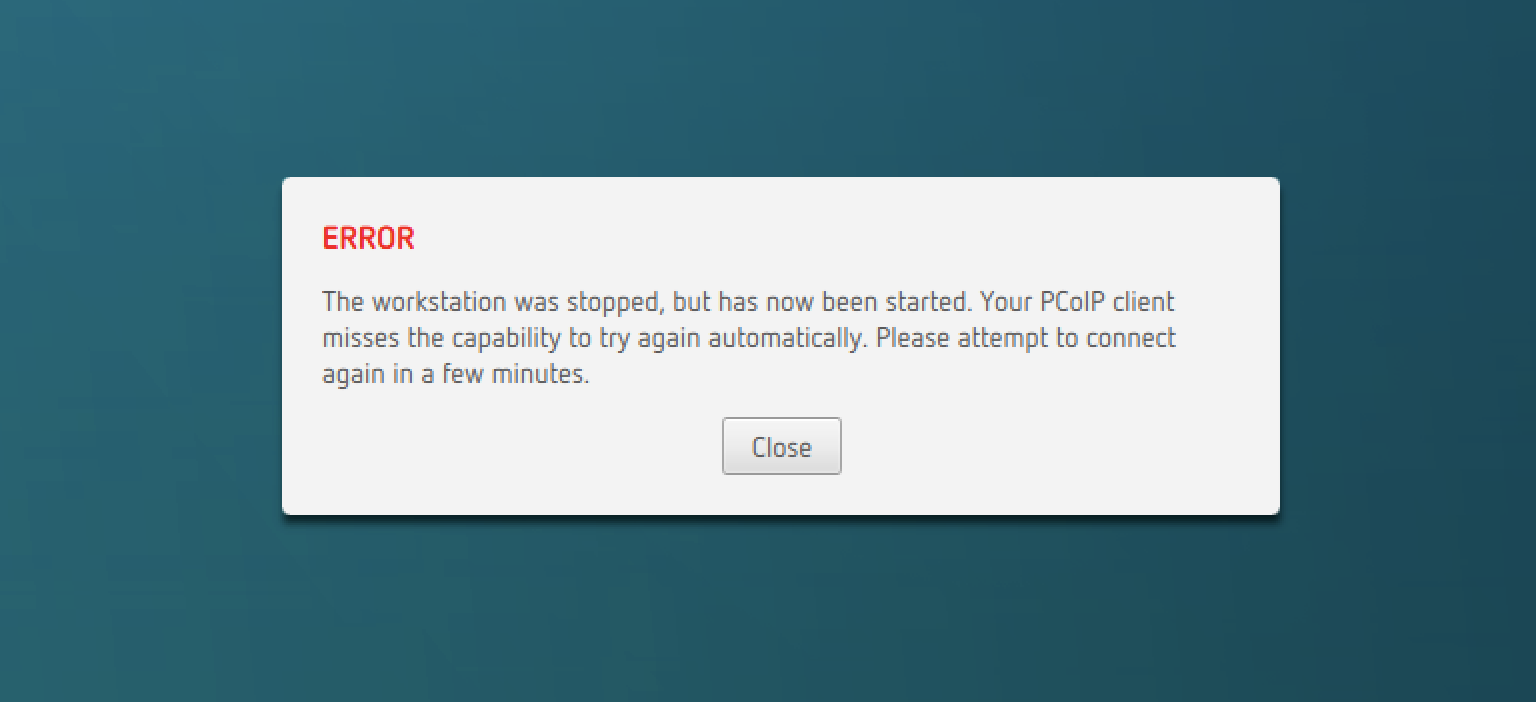
This is normal. If your workstation is off it will be turned on for you. Wait a few minutes and try again to connect.
The workstation is in a non-startable state
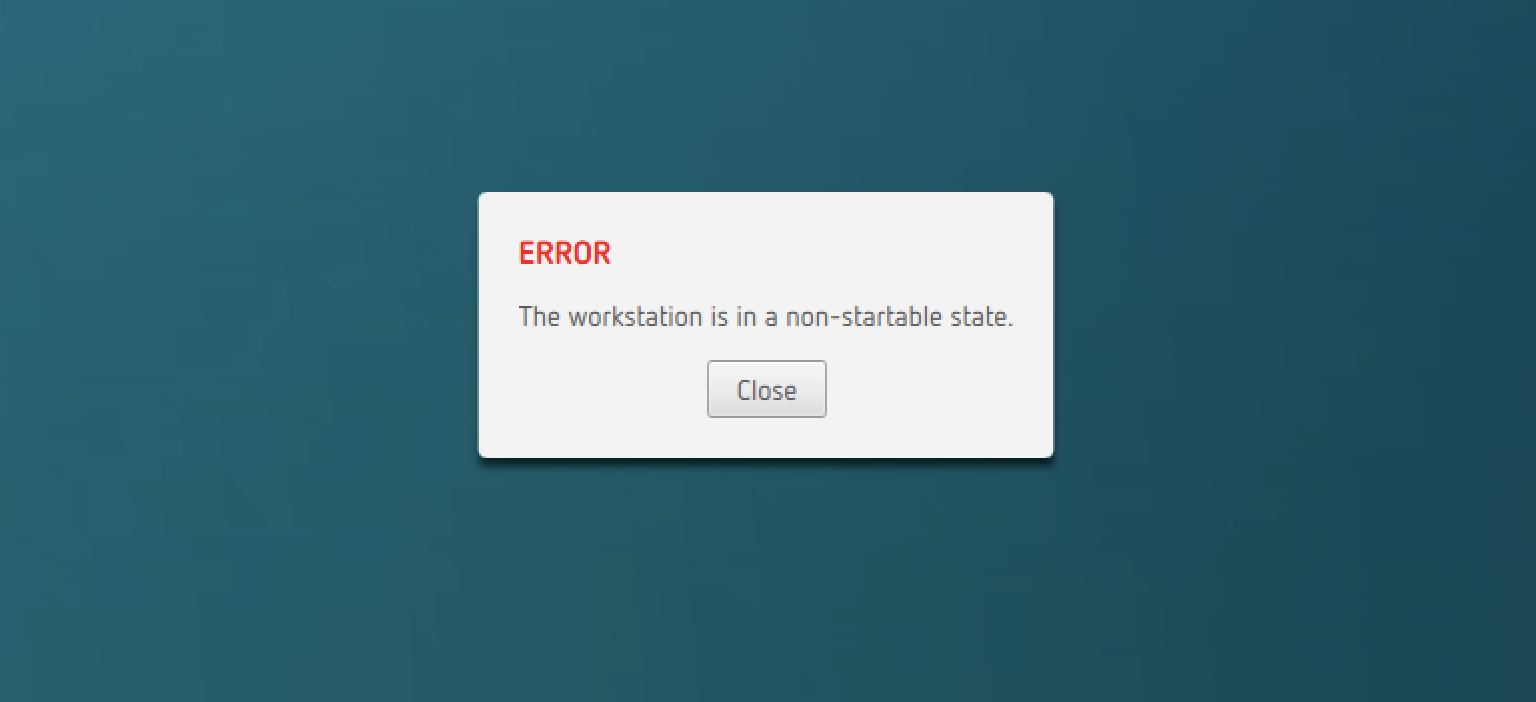
You have tried to connect to a workstation whilst it was in the process of shutting down. Please wait a few minutes and try again.
Error 6609 and Error 6405
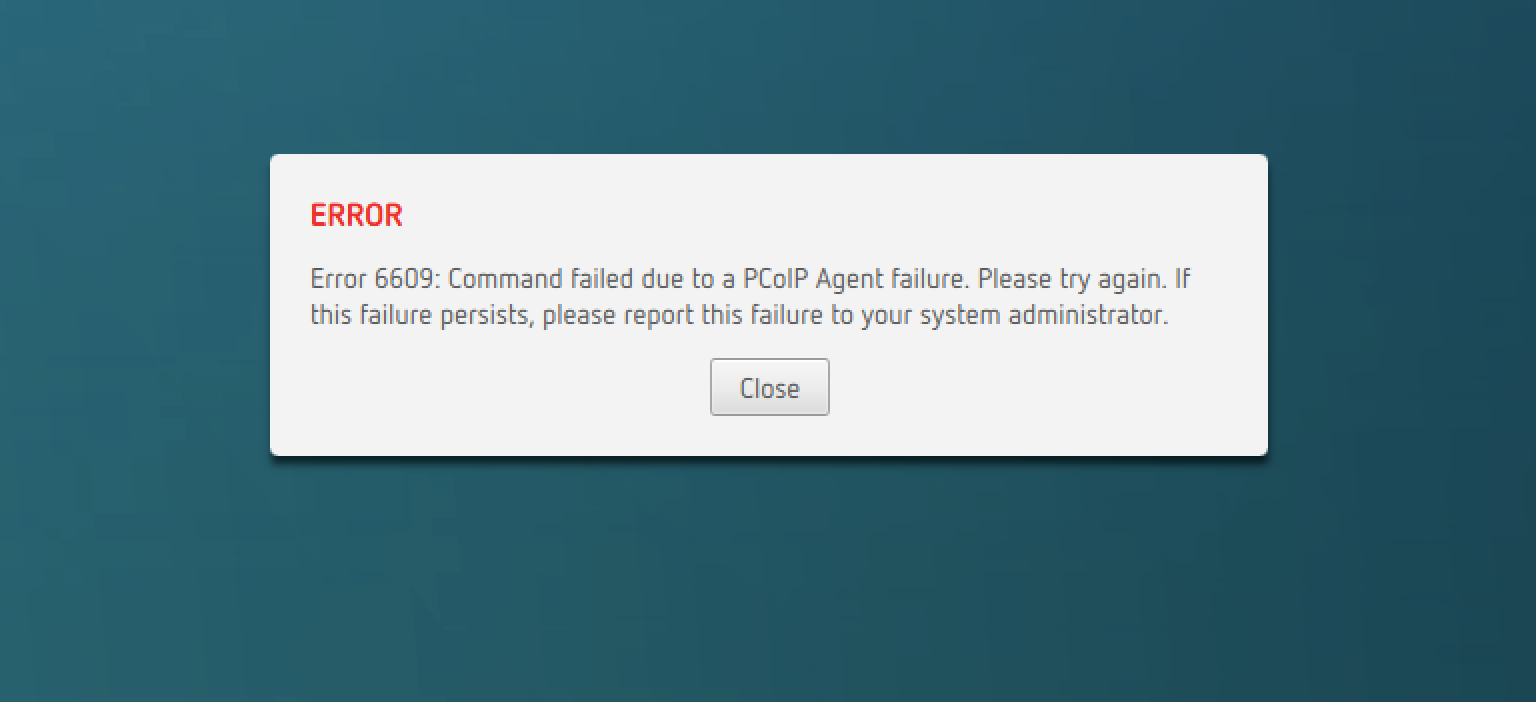
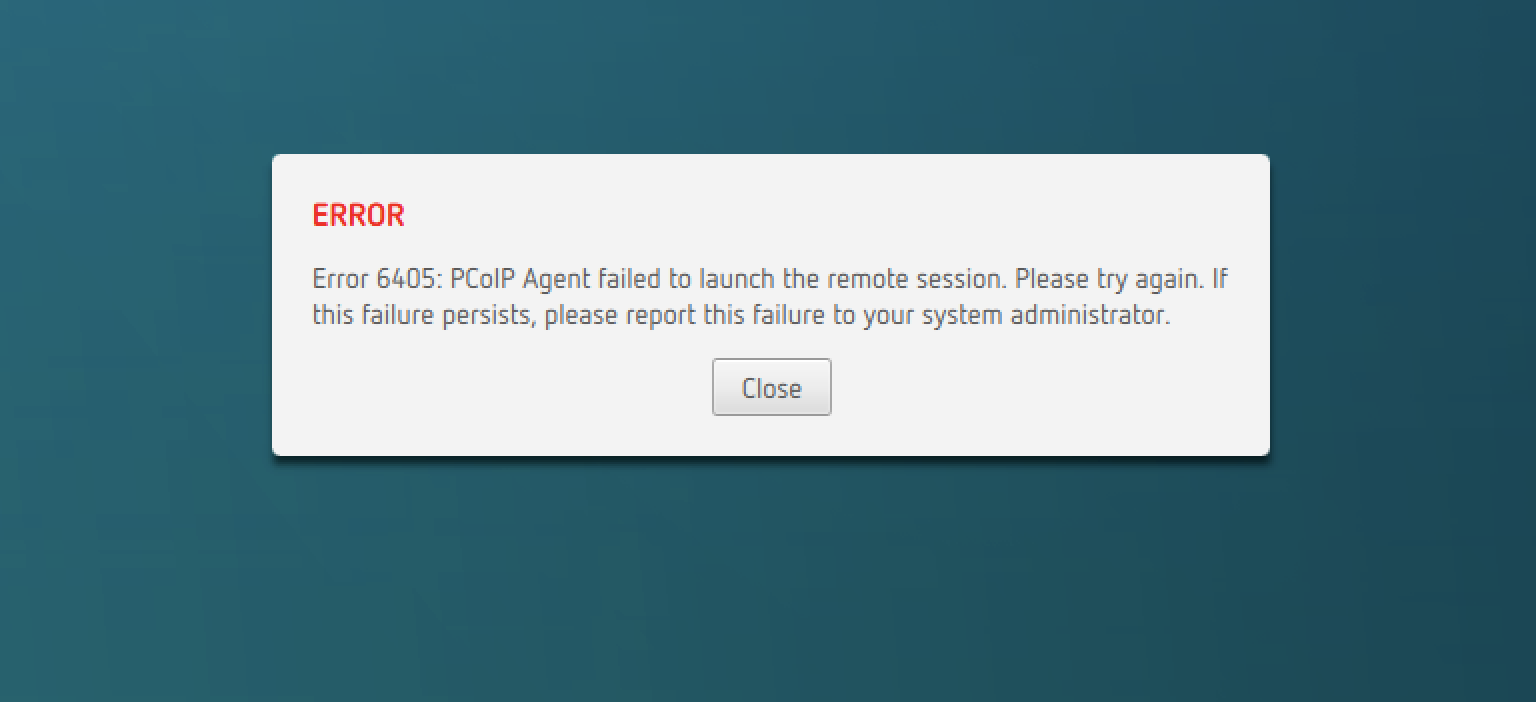
Both the above errors indicate that the workstation wasn’t quite ready to accept your connection. Please wait a few minutes and try again. If the problem persists, turn off the workstation, wait 5 minutes, turn the workstation back on again, wait 5 minutes and then try to connect.
Multiple invites but I automatically get connected to the same workstation
If you saved the connection it will have remembered which workstation you were connected to.
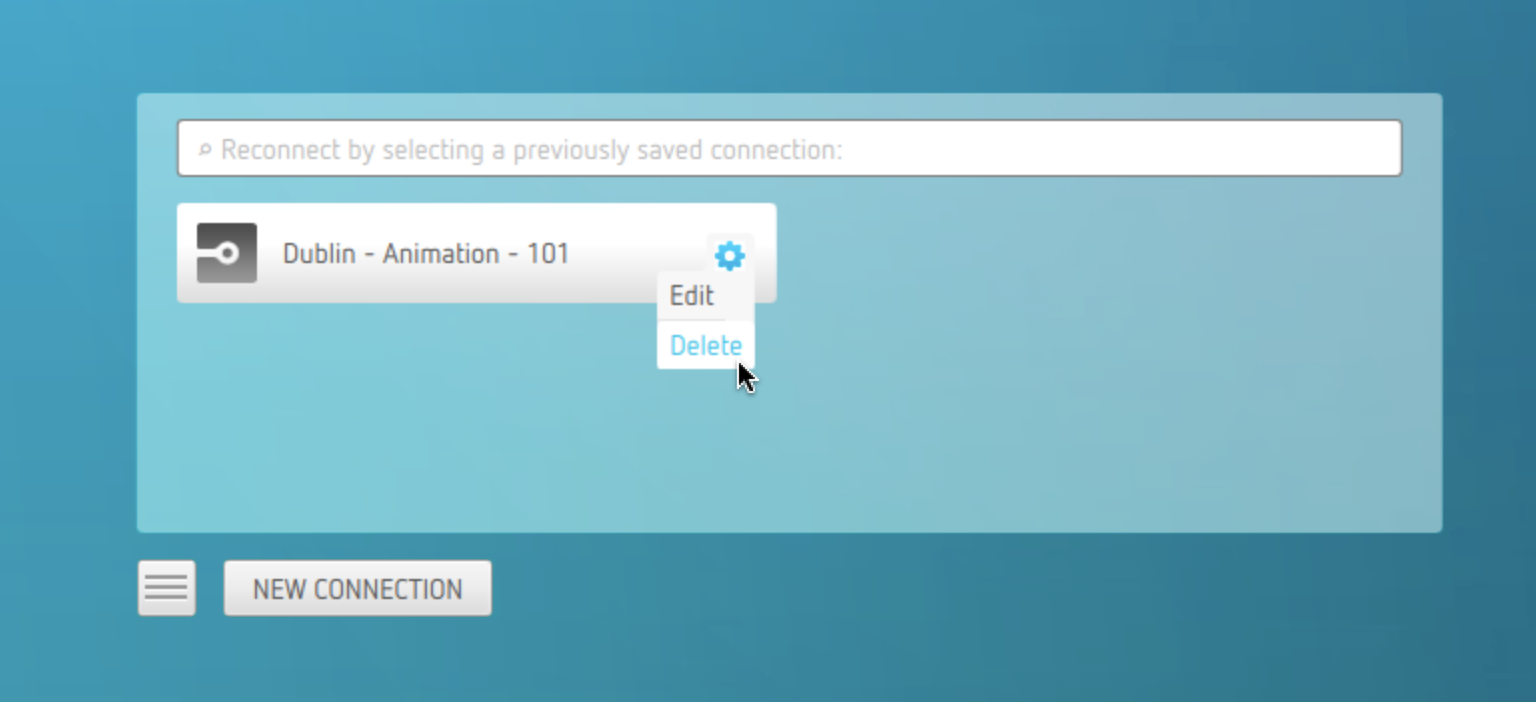
Please delete the existing saved connection and create a new one. Next time you try to connect you should be presented with a list of workstations that you have been invited to.
No available licenses
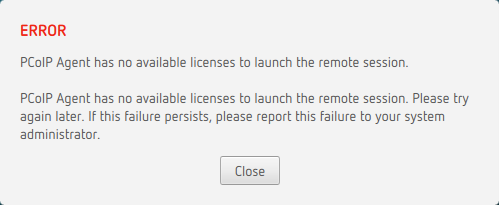
This is caused by your workstation not being able to contact the license server. This can be caused by someone changing the DNS configuration on your workstation. Or it might be that internet access from your workstation has been disabled.
There are some commands that can be run on your workstation to work out what is going on; pcoip-validate-license, pcoip-list-licenses, pcoip-fne-view-license. Theses commands will have to be run by a support engineer for you.
Command failed due to a PCoIP Security Gateway failure
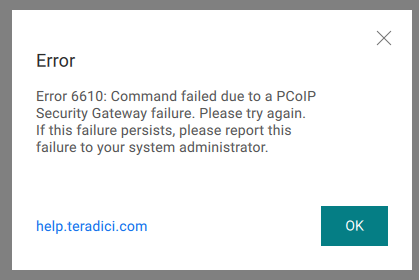
You will see the above error message if the SSL certificate has expired on the Display Gateway. The quickest way to fix this is to get your Sherpa administrator to build a new Display Gateway and delete the old one. You will then need to use the “Connect to” IP address of the new Display Gateway to connect to your workstation.