Display Gateway SSL Certificates
The Display Gateway uses self-signed SSL Certificates. The traffic to the Display Gateway is encrypted and secure, however self-signed certificates are deemed to be “untrustworthy” as they have not been signed by an independent certificate authority. These self-signed certificates last for one year.
Find information about the SSL certificates
Get the Connect to: (public IP) address of the display gateway. Make sure that your IP address is in the allow-list for the Sherpa project/Display Gateway. In a web browser type https://[ConnectToIPaddress]. Replace [ConnectToIPaddress] with the Connect to: (public IP) address of the display gateway. You should get a message that the site is “not secure/private”.
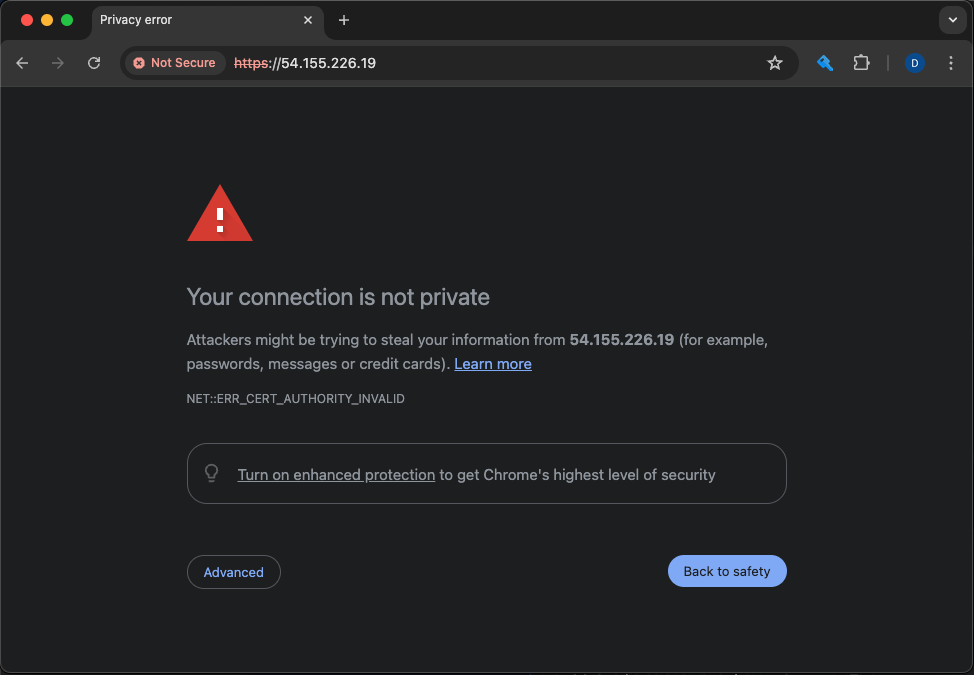
You can find out about the certificate by clicking on the badge that claims the site is not secure.
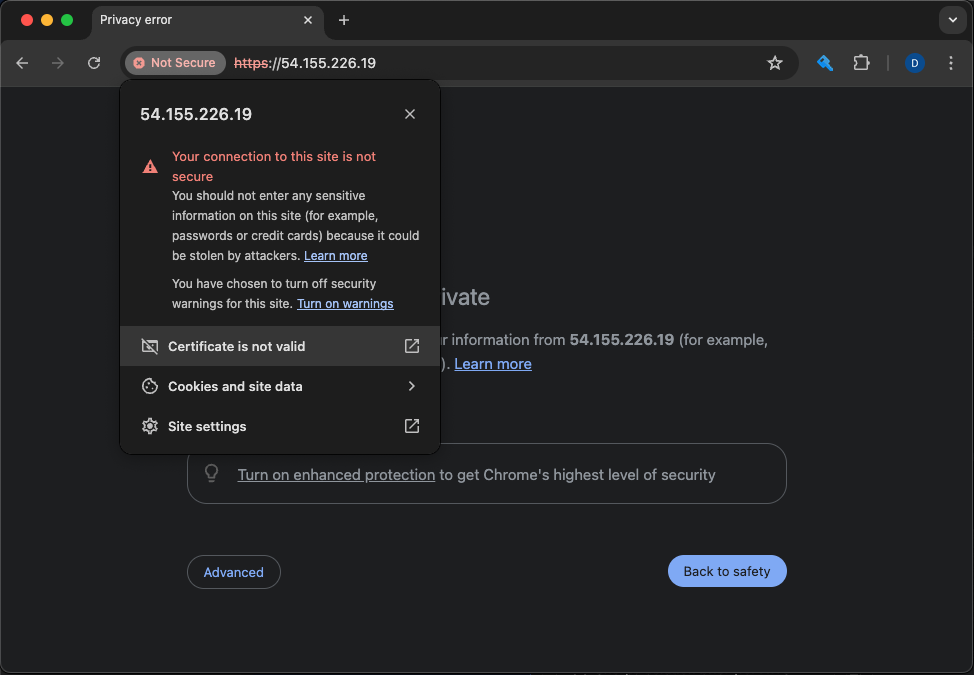
Then select “Certificate is not valid/Show certificate” to reveal information about the certificate.
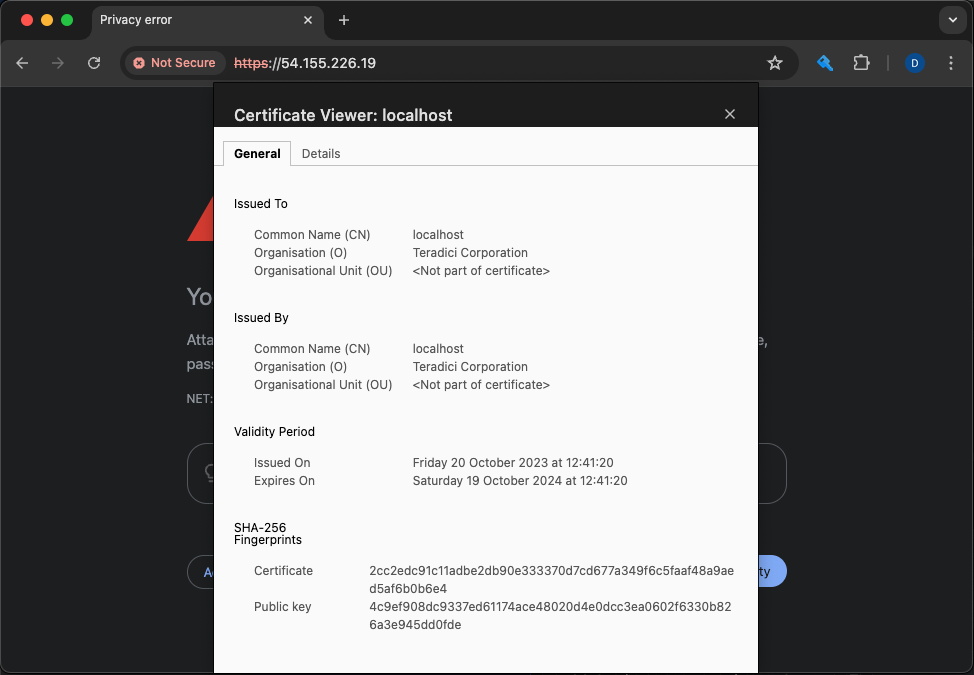
You should see something like,
Issued On Friday 20 October 2023 at 12:41:20 Expires On Saturday 19 October 2024 at 12:41:20
If the SSL certificate has expired or expires soon, you should update the SSL certificate as indicated below.
Renew the SSL certificates
To renew the SSH certificate on a Display Gateway, ssh into the display gateway and run the following commands.
sudo su
cd /var/cinc/cache/CM_SG
pcoip-cmsg-setup install --darksite-bundle-path teradici-pcoip-cmsg-bundle --accept-policies=true --self-signed=true --broker-url=https://pcoip-broker.escape-technology.com --external-pcoip-ip=[PublicIPofDisplayGateway]
In the above replace [PublicIPofDisplayGateway] with the public IP address of the Display Gateway, so that it looks similar to the below.
pcoip-cmsg-setup install --darksite-bundle-path teradici-pcoip-cmsg-bundle --accept-policies=true --self-signed=true --broker-url=https://pcoip-broker.escape-technology.com --external-pcoip-ip=54.155.226.19
The above will uninstall and then reinstall the Display Gateway with new SSL certificates. Please note that there will be a brief disruption in service.
The above will update the SSL certificate but it may be more sensible from a security standpoint to build a brand new Display Gateway. Doing so will give you a new SSL certificate, a more up to date version of the Display Gateway software and a more up to date version of the host operating system.
Build a new Display Gateway
You can easily add a new Display Gateway to an existing Sherpa project. Please check the version of your Display Gateway before replacing it.
Checking software versions
If you go to the resource details page of the Display Gateway you will be able to see build profile details. There is a big clue in the screenshot below in that the build name contains the word SUNSET and the details exposed by hovering over the ? indicates why the build profile has been sunset/retired.
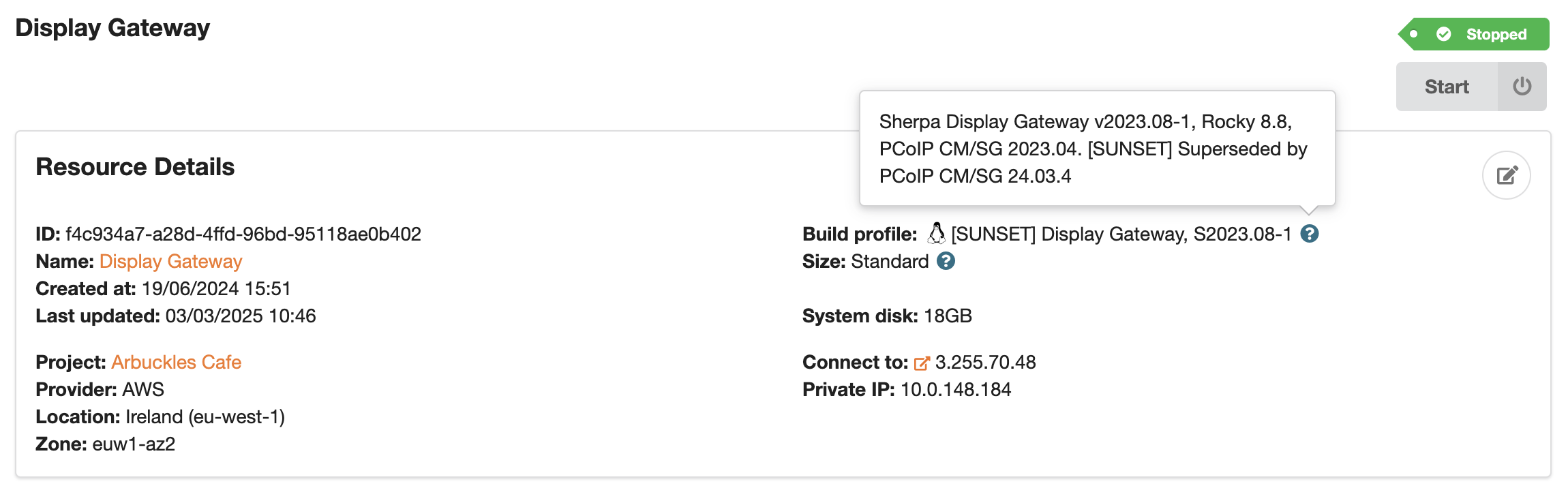
Adding a new Display Gateway
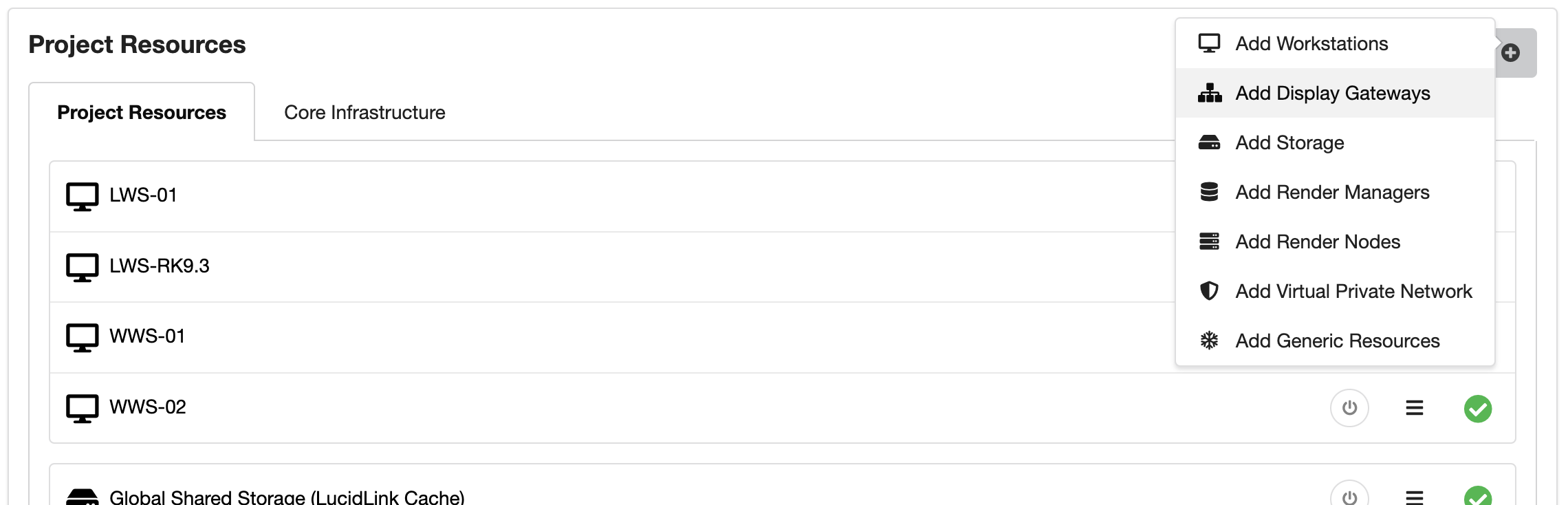
To add a new Display Gateway to your project, go to the project page, click on the + button and select Add Display Gateways.
The Add Display Gateways Wizard will open. Call the new display gateway something sensible like, “Display Gateway (New)”. Select the latest build profile and select a suitable size.
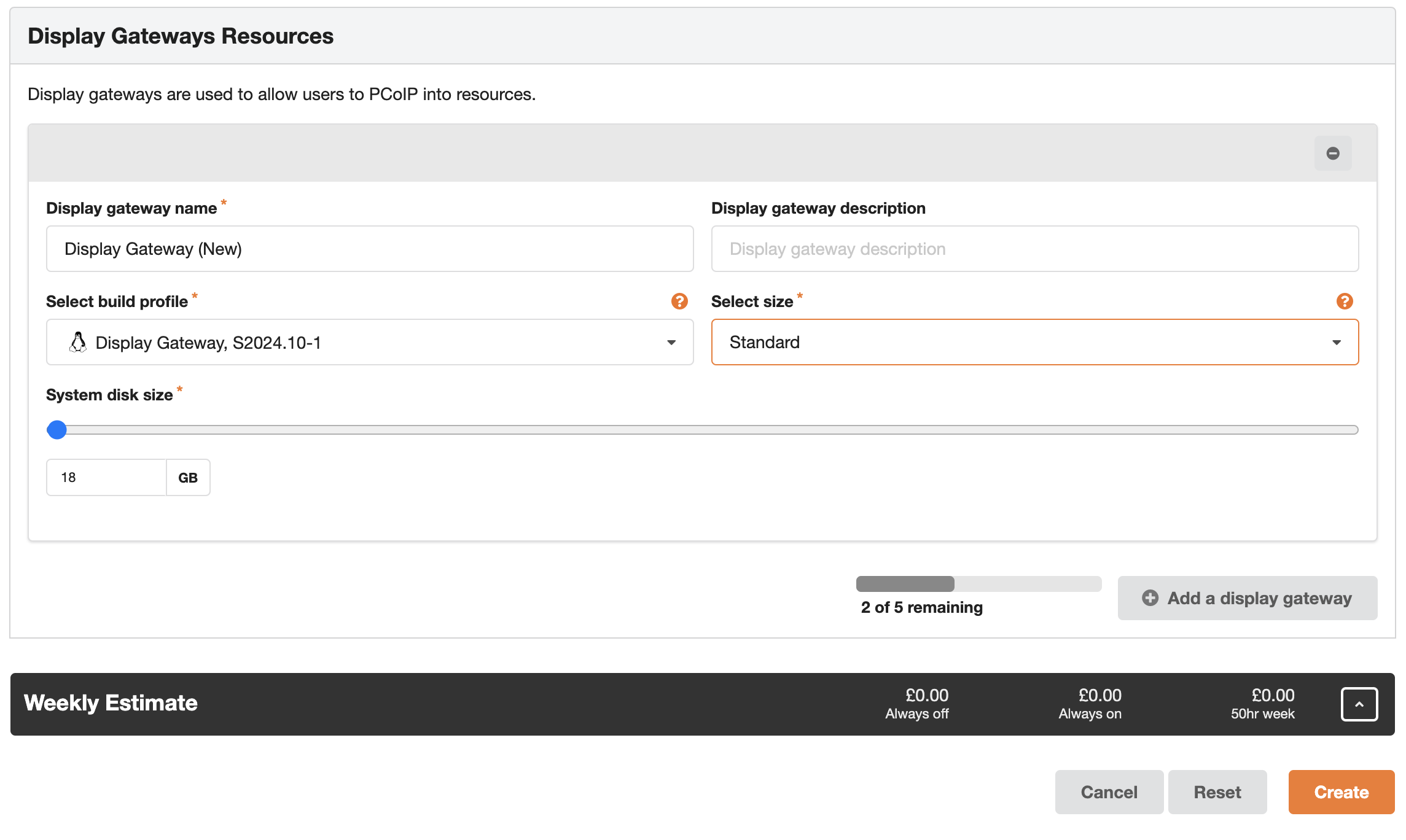
Press Create and the new Display Gateway will go through the normal Saved, Building and Built stages as illustrated below.
Saved

Building

Built

Once built, go to the resource details page and check the build profile details. In our example below, the Display Gateway software has been updated from 2023.04 to 2024.03.4 and the host operating system has been upgraded from Rocky 8.8 to Rocky 8.9.
The SSL certificate will be new and will be valid for one year from the date of creation.
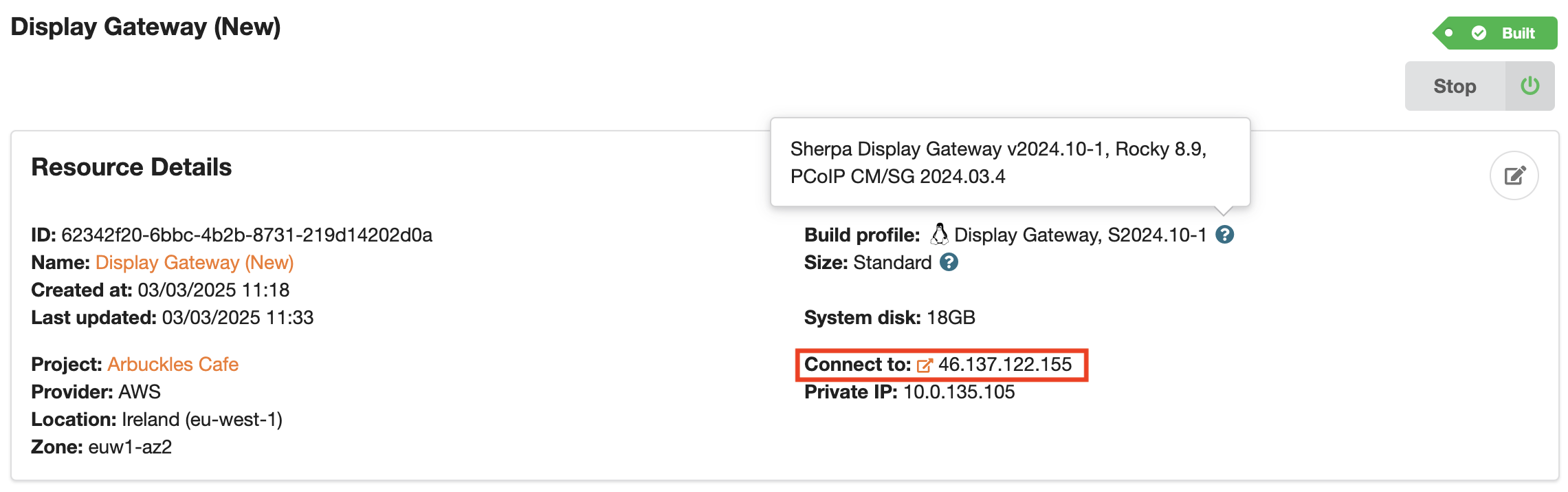
The new Display Gateway will have a new Connect to: IP address. You will need to communicate this new information to your artists/users as they will need to start using this new IP address to connect to the Display Gateway and their workstations.
You can run both Display Gateways at the same time. The desire however is to migrate your users off the old Display Gateway and on to the new Display Gateway.
Retiring the old Display Gateway
Once all your artists/users are using the new Display Gateway, turn off the old Display Gateway and leave it there for a while. Once you are happy with the operation of the new Display Gateway you can delete the old Display Gateway.