Multi Factor Authentication
For additional security, you can enable Multi-Factor Authentication. With MFA enabled for a Sherpa project the user will not only be required to supply their username and password but they will also be required to provide a six digit code which will be sent to the email address associated with their Sherpa username.
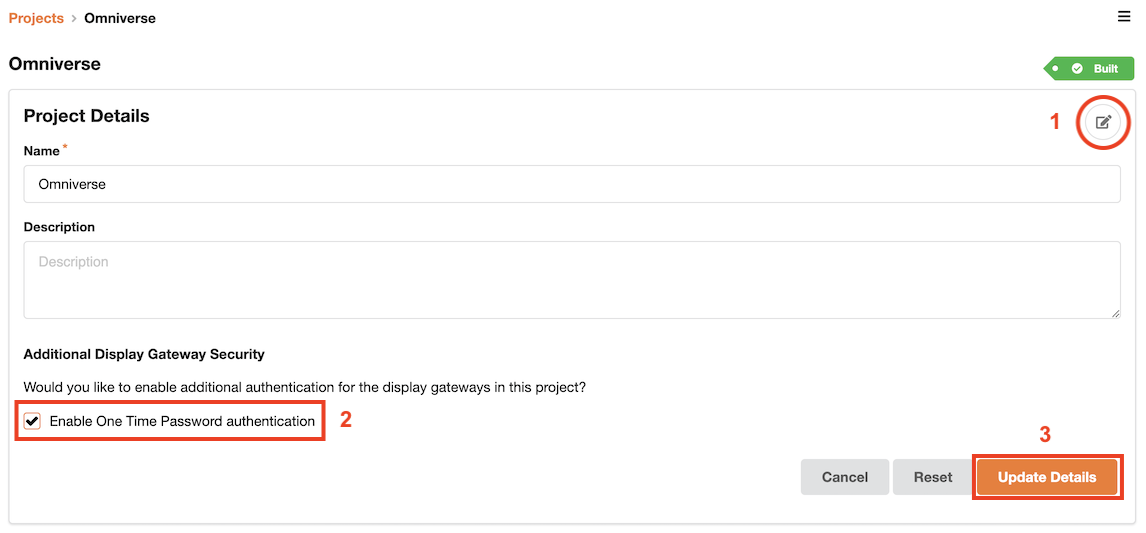
To enable MFA for a Sherpa project, go to the Project Detail page.
- Click on the pencil icon to edit the project details
- Tick Enable One Time Password authentication
- Press Update Details
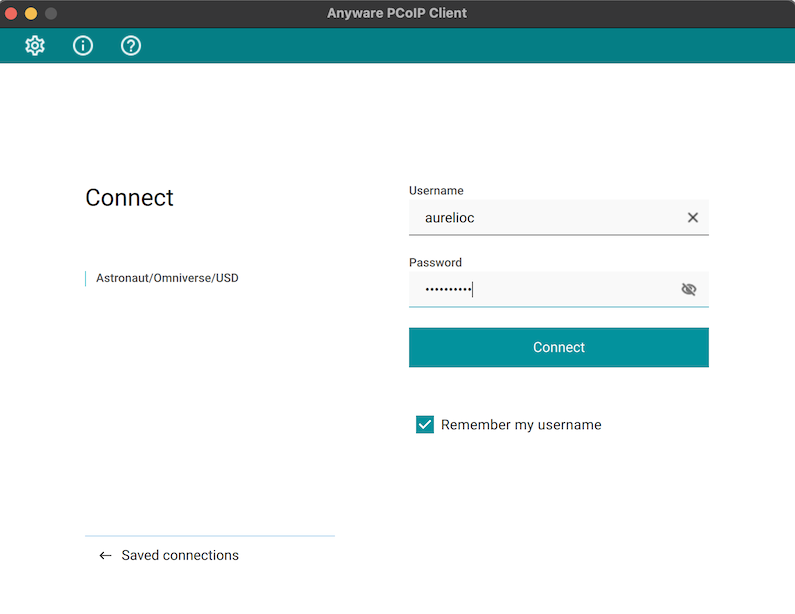
The user logs in using the PCoIP client as normal.
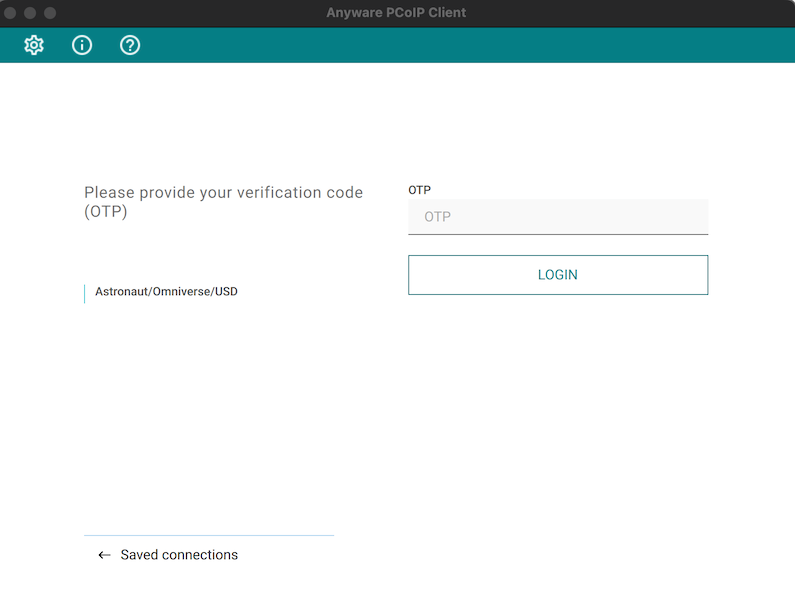
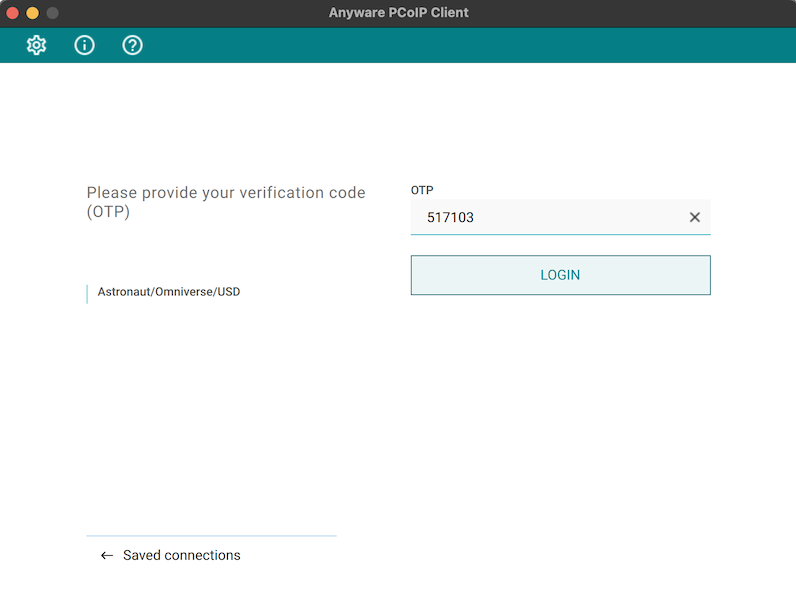
With OTP/MFA enabled the user will be presented with a second screen requesting the input of a verification code.
The verification code is sent to the email address associated with the user’s Sherpa login. The email will look similar to the below.
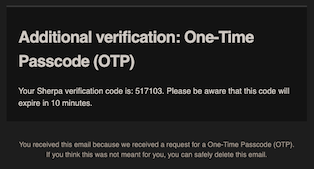
Paste the verification code from the email into the OTP box and then press LOGIN.
You will then be presented with a list of workstations as normal.